

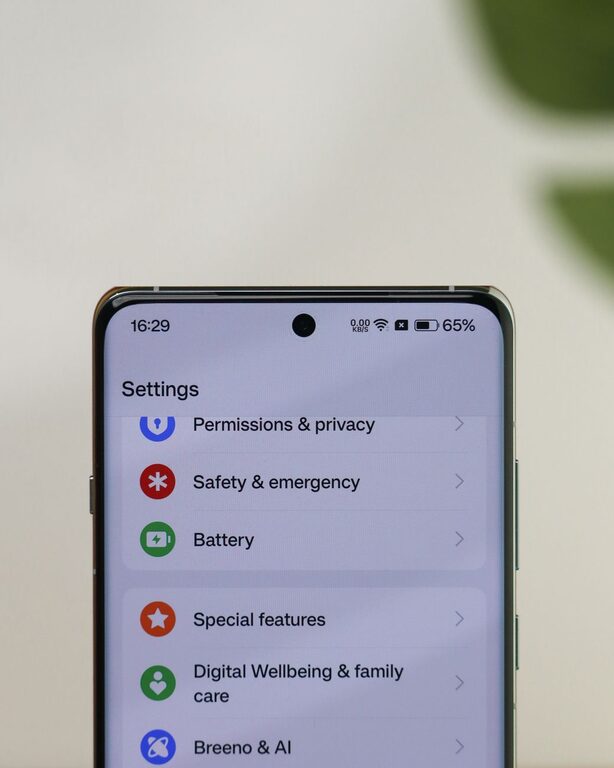
Notifications are designed to keep us informed, but they can also interrupt our work, rest and conversations. A steady stream of alerts can make it harder to concentrate and encourage us to check our devices more often than we intended.
Setting notification boundaries is not about ignoring everything. It is about deciding what deserves your attention, when you want to receive it and which alerts can wait. With a few simple changes, you can create a calmer and more manageable digital routine.
Start by noticing what interrupts you
Before changing your settings, pay attention to how notifications affect your day. Notice which alerts pull you away from important tasks, break your concentration or encourage unnecessary checking.
For a day or two, consider:
– Which apps send the most notifications?
– Which alerts are genuinely useful?
– Which interruptions are usually ignored?
– When do notifications cause the most disruption?
– Are there times when you need uninterrupted focus?
You may find that some notifications are helpful, such as reminders, messages from family or work-related updates. Others may be less important, such as promotional offers, game requests or repeated social media activity.
This short review can help you make decisions based on your actual habits rather than changing every setting at once.
Decide which alerts are essential
Not every app needs permission to interrupt you. A useful first step is to separate notifications into three groups:
Important and time-sensitive
These may include calls, messages from key contacts, calendar reminders or alerts connected to tasks that need a prompt response.
Useful but not urgent
Examples include updates from news, shopping or travel apps. You may still want to receive them, but they do not necessarily need to appear immediately.
Unnecessary or distracting
These might include marketing messages, suggested content, game updates or alerts that simply encourage you to open an app.
Keep notifications for the first group, review the second group and switch off most of the third. If you are unsure, turn an alert off temporarily. You can always restore it later.
Use your device’s notification settings
Most phones, tablets and computers allow you to control notifications by app. Open your device settings and review the list carefully. Look for options such as:
– Turning notifications on or off
– Showing alerts on the lock screen
– Allowing sounds or vibrations
– Displaying notification badges
– Choosing banners or pop-up messages
– Grouping alerts from the same app
– Selecting specific delivery times
You do not need to use every available setting. Start with the changes that will have the biggest effect. For example, turning off sounds and vibrations for social media apps may reduce interruptions without preventing you from checking them when you choose.
You can also remove lock-screen previews if you prefer to keep messages private or avoid being drawn into a conversation every time you pick up your device.
Create notification-free periods
A simple boundary is to set regular times when notifications are paused. These periods might include:
– The first 30 minutes after waking
– Focused work or study sessions
– Meals and social occasions
– Exercise or outdoor activities
– The hour before bed
– Weekends or selected evenings
Use your device’s “Do Not Disturb”, “Focus” or similar feature to automate these periods. Many devices allow selected people or apps to bypass the setting, so you can still receive alerts that matter to you.
A scheduled boundary is easier to follow than relying on willpower. Once it becomes part of your routine, you will not need to make the same decision repeatedly throughout the day.
Set different rules for different situations
One notification setting may not suit every part of your life. Consider creating a few modes for different activities.
For example, a work mode might allow calendar reminders and messages from colleagues, while a personal mode could silence work email outside your usual hours. A sleep mode might allow calls from selected contacts but block all other alerts.
You can also create a reading, driving or exercise mode if your device supports it. The aim is to match the information you receive with what you are doing at the time.
Replace instant checking with planned check-ins
If you turn off notifications but continue checking apps frequently, the habit may remain. Try replacing reactive checking with planned times.
For example, you could check:
– Messages mid-morning and mid-afternoon
– Email at set times during the workday
– Social media during a short evening break
– Shopping or news apps once a day
The exact schedule is up to you. The important point is that you choose when to check, rather than allowing every alert to make the decision for you.
Planned check-ins can also make tasks feel more contained. Instead of opening an app repeatedly, you can review updates in one session and then return to what you were doing.
Manage email and group messages
Email and group chats can create a large number of alerts. Review your email subscriptions and unsubscribe from messages you no longer read. You can also use folders, labels or filters to separate important messages from general updates.
For group chats, consider muting conversations that are active but not urgent. You can still read them later without receiving an alert for every message. If a chat is especially busy, let others know that you may not respond immediately.
A clear message can help set expectations. For example: “I check messages at a few points during the day, so I may take a little while to reply.”
Keep work and personal notifications separate
If possible, separate work and personal accounts, apps or devices. This can make it easier to switch off work-related alerts at the end of the day.
If you use one device for everything, try these options:
– Remove work apps from your personal home screen
– Turn off work email alerts outside your working hours
– Use separate profiles or focus modes
– Set an automatic reply when you are unavailable
– Keep work-related apps in a clearly labelled folder
These small changes create a visible boundary between different parts of your day.
Review your settings regularly
Your notification needs may change over time. An app you once relied on may no longer be useful, or a new service may start sending too many alerts. Set aside a few minutes each month to review your settings.
Ask yourself:
– Are notifications helping me or interrupting me?
– Which alerts have I ignored recently?
– Do I need sound and vibration for every alert?
– Are my quiet periods long enough?
– Is there a particular app I should remove or mute?
Treat your settings as something you can adjust, not a permanent decision.
Be patient while new habits develop
At first, fewer notifications may feel uncomfortable. You may worry that you are missing something, especially if you are used to responding immediately. Give yourself time to adjust.
Start with one or two changes, such as muting non-essential apps or creating a quiet period before bed. Once those boundaries feel normal, add another. Small, consistent steps are more sustainable than trying to redesign your entire digital routine in one go.
The goal is not to become unavailable. It is to make your availability more intentional. By choosing which alerts can reach you and when, you can protect your attention while staying connected to the information and people that matter most.